
 Log In
LeadTruffle Insights
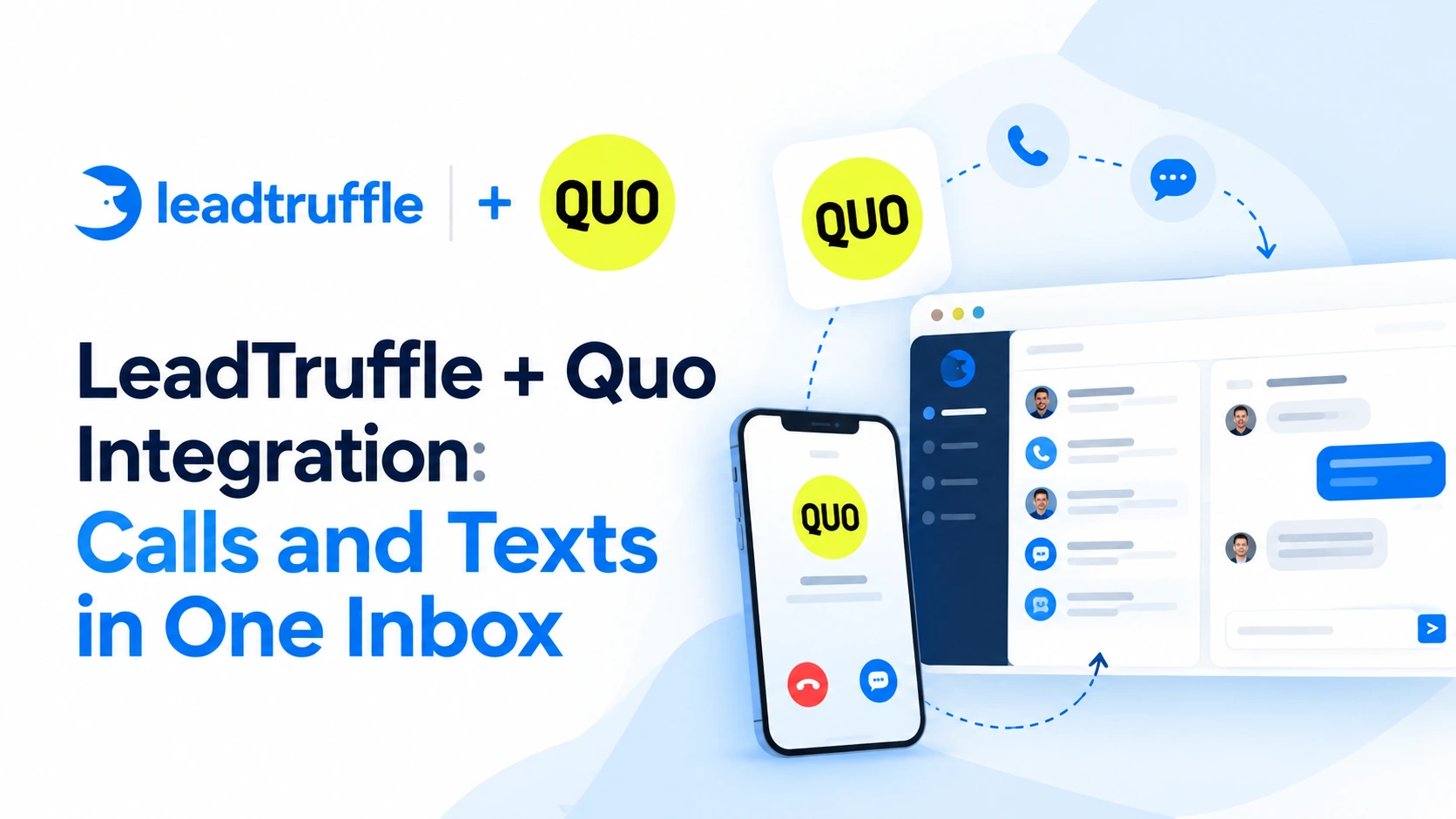
LeadTruffle + Quo Integration: Calls and Texts in One Inbox
Bring Quo calls, texts, voicemail, and available transcripts into LeadTruffle. Keep your Quo number and review phone history alongside customer inquiries.
Quick Answer
tl;dr: The Quo LeadTruffle integration pulls incoming and outgoing calls and texts from selected Quo business lines into LeadTruffle. Available transcripts, summaries, and voicemail add context; recording and attachment references are also imported. You and your team continue to call and text on Quo, formerly OpenPhone, and review this activity in LeadTruffle’s unified inbox alongside other customer conversations.
Keep your phone workflow and share the context
A homeowner contacts your website with a request to fix a leaking water heater. Later, they call your Quo number and text you a picture.
Without a connected history, the person following up may have to look in multiple places to find out what’s already been discussed. When the phone activity matches the same LeadTruffle contact, your team can check it alongside the previous inquiry.
The connection is explained in the Quo integration overview. Let’s see how you can incorporate it into your office routine.
What syncs from Quo to LeadTruffle?
The integration brings in activity from the business lines you choose and save:
- Supported incoming and outgoing calls, including the original date, call direction, and business line.
- Incoming and outgoing SMS, grouped by Quo conversation.
- Message attachment references when Quo supplies them.
- Available call recording references, transcripts, summaries, and voicemail.
- Team members who can be identified as senders and associated details of participants if available.
Contact matching primarily uses the participant’s phone number. Available profile information can fill empty contact fields without replacing existing details. This is linked to the activity, rather than an import of your complete Quo address book.
Available voicemail audio, transcript text, and summaries can be reviewed in LeadTruffle. Regular Quo call recordings and message attachments must currently be opened in Quo; importing their references does not make them playable or downloadable in the LeadTruffle dashboard.
With Quo call history sync, call details might become available after the call record itself. A completed history import does not mean every recording or transcript is ready.
How the workflow works
- Your team handles a call or text in Quo as usual.
- LeadTruffle imports supported activity from your saved business lines.
- Identifiable participants are matched to existing contacts or used to create contacts when appropriate.
- Your team reviews the imported history before the next follow-up.
For example, an office manager may review the customer’s earlier text and available call transcript before calling back. That gives them a better starting point than asking the customer to repeat the request.
Human text replies sent through Quo can trigger LeadTruffle’s existing human-takeover controls for the linked contact when they are marked sent or delivered, occurred within the last 10 minutes, and were sent after line syncing began. This does not apply to initial history imports, calls alone, or unknown or automated senders.
How to connect Quo to LeadTruffle
Set up with the assistance of a Quo workspace owner or administrator.
- Use the API key to connect Quo in the integration settings in LeadTruffle.
- Choose and save the business lines that you want to sync.
- Start from now, or import the past 30 or 90 days.
- Leave the integration page open during the initial import. Pause and resume if needed.
- Set up live updates individually by using the webhook URL and signing secret and then view a new call or text in LeadTruffle.
Daily catch-up helps recover missed activity. It does not finish an initial history import that stopped when the page closed.
What the Quo integration covers
This connection brings Quo activity into LeadTruffle. Your team still makes calls and sends texts from your Quo number in Quo.
If you also want AI Voice to answer forwarded calls or missed-call text-back to follow up with callers, you need to configure these services separately and set up call forwarding. Connecting the sync does not turn them on or change call routing. See the Quo call-forwarding guide for that separate setup.
The integration does not support CRM booking, full address-book sync or two-way contact editing.
Frequently asked questions
Does LeadTruffle work with OpenPhone?
Yes. OpenPhone is now known as Quo. The OpenPhone LeadTruffle integration imports supported activity from selected Quo lines into LeadTruffle.
Can we keep our Quo business number?
Yes. Your team continues to use the Quo number and Quo app to call and text.
Can we send Quo texts from LeadTruffle?
No. This sync imports Quo activity. It is not a messaging or calling service via your Quo number.
Does importing Quo history count toward billable LeadTruffle usage?
No. Imported Quo activity does not count toward billable LeadTruffle usage. Separately configured LeadTruffle services continue to be billed normally.
Does disconnecting remove imported history?
No. Disconnecting stops syncing and import work while keeping the imported history.
Give your team the context for the next conversation
Keep the phone system your home service team already uses and make its activity easier to review alongside your other lead conversations.