
 Log In
LeadTruffle Insights
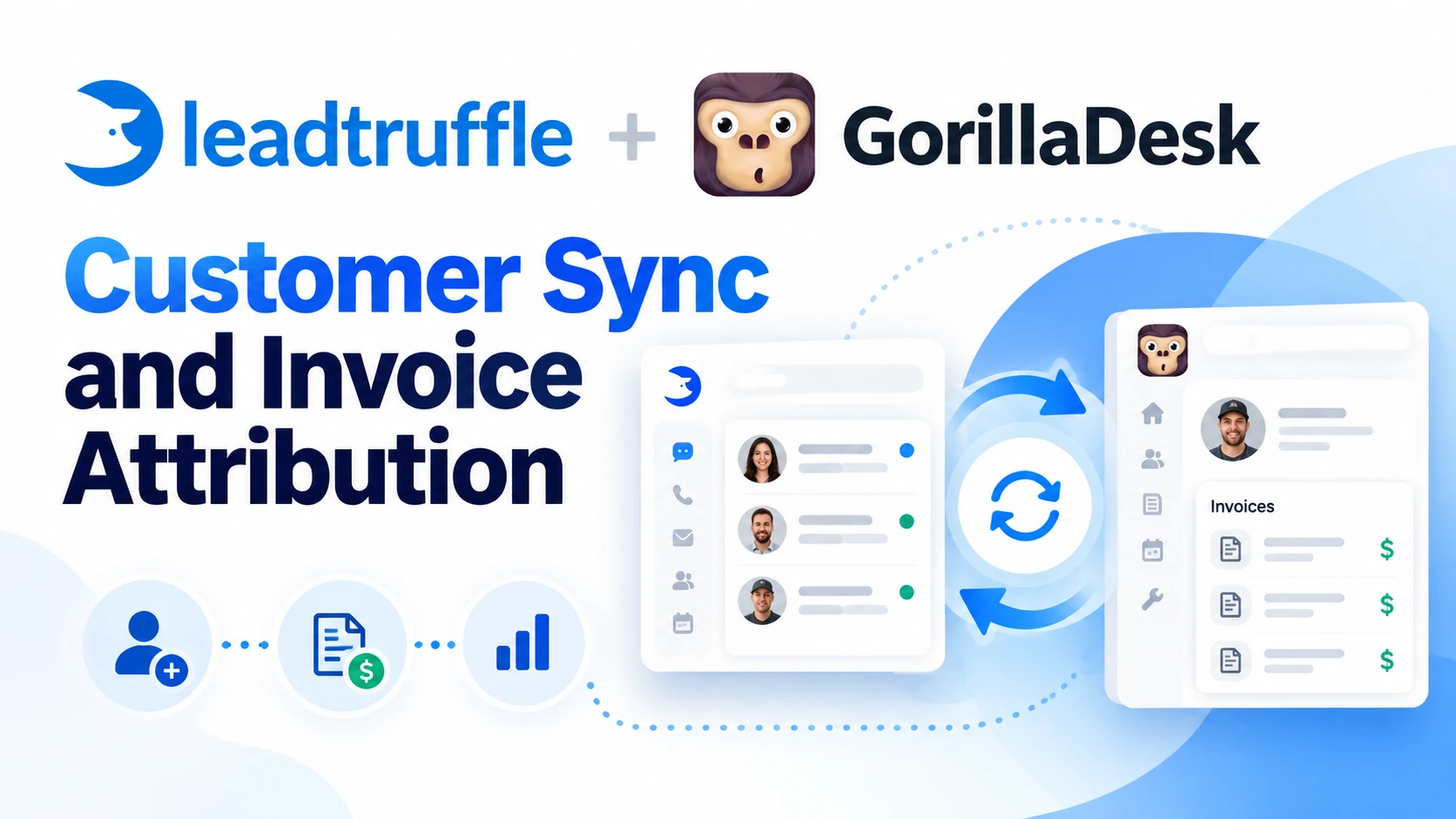
LeadTruffle + GorillaDesk Integration: Customer Sync and Invoice Attribution
Send qualified customer details and inquiry notes from LeadTruffle to GorillaDesk. Match eligible invoices back to leads for revenue attribution.
Quick Answer
tl;dr: The LeadTruffle GorillaDesk integration sends qualified customer details, service locations, and inquiry notes into GorillaDesk. Optional invoice sync matches eligible GorillaDesk invoices to LeadTruffle inquiries for revenue attribution. Your office keeps scheduling in GorillaDesk; this integration does not create jobs or book appointments with AI.
Move the inquiry into your office’s workflow
A pest control prospect explains the problem, provides the property address, and answers your qualification questions. Your office needs those details in GorillaDesk before taking the next step.
This GorillaDesk integration for pest control teams brings those details into the customer workflow you already use. Staff can open the customer record, review the inquiry note, and follow the link to the LeadTruffle conversation instead of retyping the exchange.
What the GorillaDesk integration does
With GorillaDesk customer sync enabled, LeadTruffle can:
- Find an existing GorillaDesk Customer using phone or email.
- Create a new Customer with lead status when the required information is available.
- Reuse a matching service location or create one from a complete address.
- Add an inquiry note with available project details, qualification answers, lead source information, and a conversation link.
- Record completed actions to reduce duplicate customers, locations, and inquiry notes.
Invoice sync is a separate option. It brings eligible invoice information back into LeadTruffle to help match inquiries with invoice value.
For a wider selection of CRM connections, explore LeadTruffle integrations.
How customer sync works
- LeadTruffle collects the customer’s contact and service details through your configured lead workflow.
- The GorillaDesk lead sync workflow checks for an existing Customer using phone or email.
- If there is no match, it creates a Customer when the required information is available.
- It reuses or creates the service location and adds the inquiry note.
- Your office reviews the details and manages scheduling in GorillaDesk.
A new Customer needs a first name, a phone number or email, and a complete service address: street, city, state, and ZIP or postal code. Exported phone numbers also need a valid GorillaDesk phone type.
An existing matched Customer can receive an inquiry note even if the new inquiry does not include a complete address. If identity matches conflict, the integration holds the sync for review instead of selecting a customer automatically.
What your team sees in the inquiry note
The note can include the customer’s request, qualification answers, lead source, submission time, and any available missed-call voicemail details.
Source information appears in the note text rather than a dedicated source field. The full conversation is linked instead of uploaded as a transcript. The generated lead-detail section has a 2,000-character limit, so the conversation link helps when your team needs the complete exchange.
This gives your office a clearer handoff while keeping the original conversation available in LeadTruffle’s unified inbox.
Connect invoices with lead outcomes
When invoice sync is enabled and configured, eligible GorillaDesk invoices can be matched to LeadTruffle inquiries. GorillaDesk invoice attribution supports lead-source tracking and revenue analytics using the available invoice information.
Revenue attribution uses the invoice total, not payments collected. A matched invoice does not mean the customer has paid in full.
Draft, void, deleted, and other ineligible invoices are excluded or reconciled if previously matched. Ambiguous matches are held for review instead of assigned automatically. Historical invoice review may take multiple runs on larger accounts, so older changes might not appear immediately.
How to connect GorillaDesk to LeadTruffle
- Confirm GorillaDesk API access. Its official API guide covers the Pro API add-on and key setup.
- Connect GorillaDesk in LeadTruffle with a dedicated API key.
- Select a valid phone type for exported phone numbers and enable customer sync.
- Review a customer handoff and its inquiry note.
- If you use invoice attribution, confirm the invoice currency and whether amounts use decimal units or cents before enabling invoice sync.
Customer sync and invoice sync are separate settings, and both default to off. Connection checks and integration logs help your team review issues.
Frequently asked questions
Does LeadTruffle book GorillaDesk appointments with AI?
No. The integration supports customer, location, and inquiry-note sync, along with optional invoice attribution. Your office manages appointments and jobs.
Will it create a duplicate Customer for every inquiry?
It first checks for an existing Customer using phone or email and records completed actions to reduce duplicates. Conflicting matches and uncertain writes need review; duplicate prevention does not guarantee that every office-side change will be covered.
Does it upload the full conversation?
No. It adds an inquiry note with available details and a link to the LeadTruffle conversation.
Does invoice attribution show payments collected?
No. It uses eligible invoice totals. Payment collection and cash reporting remain separate.
Put qualified customer details where your team works
Give your office a clearer handoff in GorillaDesk and connect eligible invoices with the inquiries behind them.
Book a demo to see the GorillaDesk customer handoff and invoice attribution workflow.