
 Log In
LeadTruffle Insights
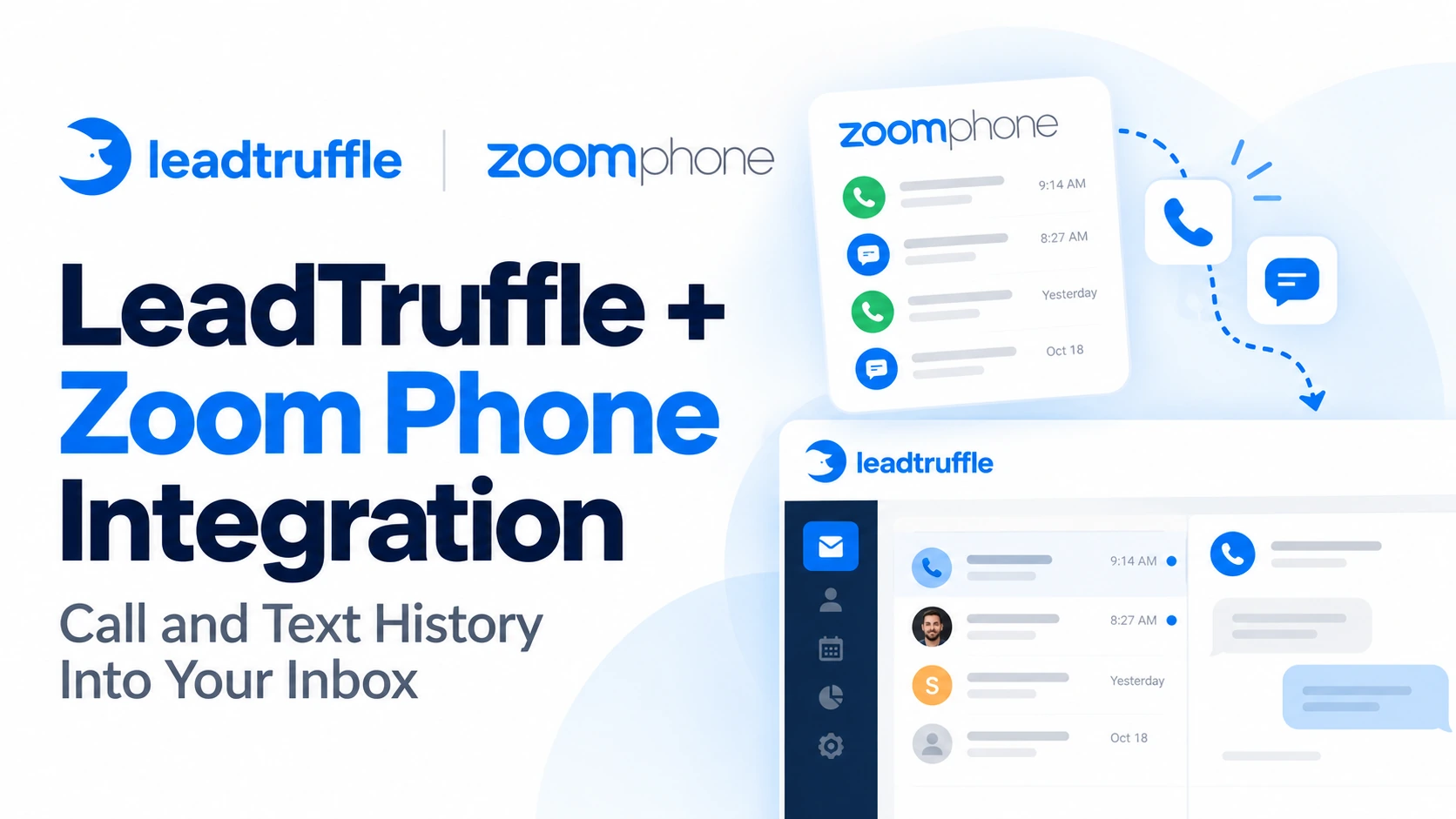
LeadTruffle + Zoom Phone Integration: Call and Text History Into Your Inbox
Sync Zoom Phone calls, texts, and available voicemail and recordings into LeadTruffle, so your team can review phone activity alongside other inquiries.
Quick Answer
tl;dr: The LeadTruffle Zoom Phone integration brings incoming and outgoing calls and SMS from selected business numbers into LeadTruffle. Available voicemail, recordings, transcripts, and MMS attachments add context to that history. Your team keeps using Zoom Phone for calls and texts while reviewing supported activity alongside other customer inquiries.
See the conversation that happened by phone
An HVAC customer uses your website texting widget to request information, calls your Zoom Phone number, and later texts a time when they will be home.
The next person handling the inquiry needs that phone conversation as well as the original form submission. When identifiable phone activity matches the customer’s LeadTruffle contact, the office can review their Zoom Phone history alongside other conversations in the unified inbox.
For home service contractors, this Zoom Phone integration gives the team shared customer context without switching business phone systems.
What syncs from Zoom Phone?
For the business numbers you choose, the integration supports:
- Call logs (both inbound and outbound).
- Incoming and outgoing SMS.
- Available voicemail and voicemail transcripts.
- Available call recordings and recording transcripts.
- Available MMS attachments.
Records include provider identity, business-line data, original timestamps, and participant data (if available). The identified participants can be matched to existing LeadTruffle contacts or added as contacts if applicable.
Available participant names and emails can fill empty profile fields without replacing existing details. The entire Zoom address book is not imported.
Media availability depends on your Zoom account’s permissions, licenses, and retention settings. A call record may show up before its recording or transcript is ready.
Some transferred calls can be missed when a selected number appears only in a transfer leg rather than as the original caller or recipient. Check those calls in Zoom Phone; the synced history should not be treated as a complete call archive.
How the Zoom Phone workflow works
- Your team makes or receives a call or text through Zoom Phone.
- The integration imports supported activity from the selected business numbers.
- LeadTruffle matches identifiable participants to customer records.
- Your office reviews the history before following up through its configured workflow.
For instance, a dispatcher can read an available voicemail transcript to understand the customer’s request before returning the call. They can also listen to an imported recording when Zoom makes it available and media access succeeds.
Zoom Phone call history sync can pause and resume from saved progress. Once live updates are configured, supported events bring in new activity. Daily reconciliation helps recover missed activity, while delayed-media retries check for details that were not ready on the initial import.
How to connect Zoom Phone to LeadTruffle
This connection uses a customer-owned app rather than a public marketplace installation.
- Request your Zoom account owner or authorized account administrator to set up and activate a Server-to-Server OAuth app.
- Grant the necessary Zoom Phone read permissions for the activity and media you want to access.
- Provide the Account ID, Client ID and Client Secret for the Zoom Phone integration in LeadTruffle.
- Select the business numbers and begin the history import. Keep the page open while importing, or resume later.
- For live updates, save the app’s Secret Token in LeadTruffle, then configure and validate the provided webhook URL, enable the supported event subscriptions in Zoom, and save or activate those changes.
Verify that an expected call or text appears in LeadTruffle after configuration. Saving credentials and importing history are separate from setting up live updates.
Your administrator can refer to Zoom’s Server-to-Server OAuth documentation for the authentication requirements.
What to know about recordings and AI
The integration imports transcripts that Zoom already provides. It doesn’t create new transcriptions or offer a general Zoom AI Companion summary lookup.
It also doesn’t make calls or send messages via Zoom Phone from LeadTruffle. Use Zoom Phone for those actions as before.
Other LeadTruffle automations, such as the AI voice agent, are set up separately. Connecting phone history does not enable them. Review other supported workflows with LeadTruffle integrations.
Frequently asked questions
Is this for Zoom Phone or Zoom Meetings?
Zoom Phone. This adds supported business-phone activity to LeadTruffle, instead of importing Zoom Meetings sessions.
Can we choose which numbers sync?
Yes. Choose the accessible business numbers you want to include rather than importing activity from every line.
Does every call include a recording and transcript?
No. Recordings and transcripts must be available from Zoom and accessible under your account's permissions, licenses, and retention settings.
Can we send Zoom Phone texts from LeadTruffle?
No. This Zoom Phone SMS integration imports activity. Your team keeps sending texts and making calls in Zoom Phone.
Does importing history enable AI replies or add billable usage?
No. Importing history does not enable AI replies or count toward billable LeadTruffle usage. Other LeadTruffle services keep their regular settings and billing.
Give the next teammate a clearer starting point
Bring available Zoom Phone history into the same place your team already reviews customer inquiries.
Schedule a demo to explore integrating Zoom Phone with your LeadTruffle process.