
 Log In
LeadTruffle Insights
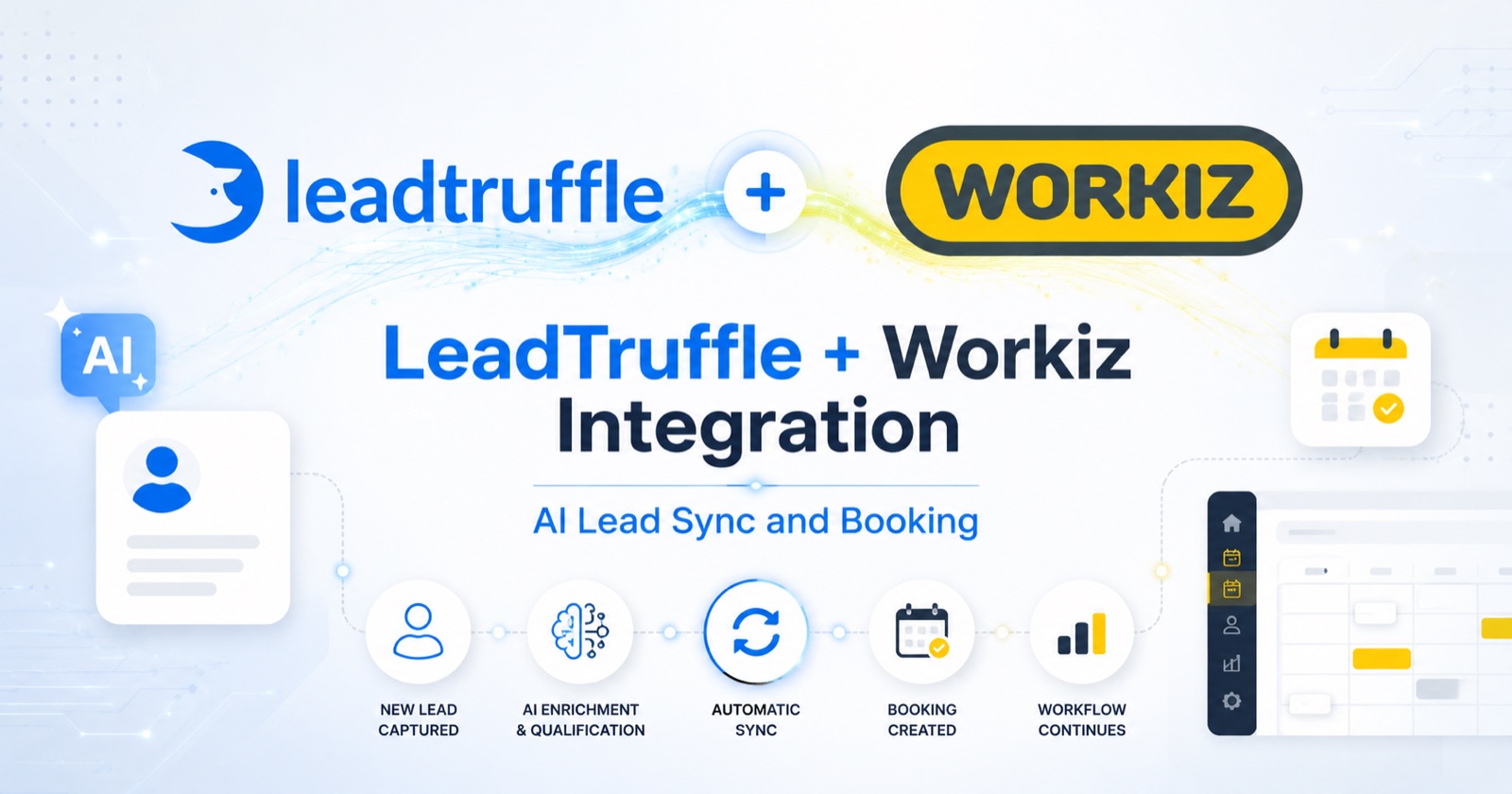
LeadTruffle + Workiz Integration: AI Lead Sync and Booking
Connect LeadTruffle with Workiz so AI can offer real appointment times, confirm the slot, and create a scheduled Workiz job with the customer details and notes.
Quick Answer
tl;dr: LeadTruffle now supports full AI booking for Workiz. Once connected, the AI can offer available appointment times during a text or voice conversation, confirm the time the customer picks, re-check that the slot is still open, and create a scheduled job directly in your Workiz account.
This goes well beyond lead sync. LeadTruffle already synced leads into Workiz. Now it can turn a qualified conversation into a booked Workiz job without your office team scheduling it by hand.
If your team runs daily operations in Workiz, this connects the first conversation straight to your schedule.
What the LeadTruffle Workiz Integration Does
Workiz is field service management software. Teams use it to schedule jobs, dispatch technicians, manage leads, invoice customers, and track performance in one place.
LeadTruffle handles the front of that process. It captures new leads, replies fast, qualifies the customer, and now books the appointment. With AI booking on, qualified conversations become scheduled Workiz jobs.
Once connected, LeadTruffle can:
- Sync qualified leads into Workiz as leads
- Offer real appointment times during text or voice conversations
- Check existing Workiz jobs so it doesn’t double-book
- Confirm the customer’s chosen slot and create a scheduled Workiz job
- Send customer details, address, job type, source, and notes
- Assign the job to a technician, with single or round-robin assignment
- Keep logs for every sync, booking, and assignment
Lead sync and AI booking are separate settings, so you can run one or both. If you want a wider view of how LeadTruffle connects with CRMs and lead sources, the LeadTruffle integrations page covers more.
How AI Booking Into Workiz Works
The booking flow is built so the AI only offers times that are really open, then confirms again before it writes anything to Workiz.
A typical booking looks like this:
- A customer reaches out through webchat, a form, a missed call, or a phone call.
- LeadTruffle responds and qualifies the lead.
- LeadTruffle checks your booking windows and pulls existing Workiz jobs.
- The AI offers exact appointment times that are still open.
- The customer picks a time.
- LeadTruffle re-checks that the slot is still available.
- LeadTruffle creates the scheduled Workiz job and optionally assigns a tech.
- Your team sees the booked job in Workiz.
The re-check in step 6 matters. If another job got booked in Workiz after the AI offered a time, LeadTruffle does not create the job. It returns the slot as unavailable and the AI can offer new options instead.
Availability and Conflict Checking
Workiz booking uses availability windows you set inside LeadTruffle. It does not pull Workiz’s native availability windows.
You can configure rules such as:
- Timezone
- Slot duration
- Minimum notice before a booking
- How many days ahead the AI can offer
- Weekly availability windows by day and hour
For example: Monday to Friday, 9:00 AM to 5:00 PM, 60-minute slots, 2-hour minimum notice, 7 days out.
LeadTruffle then pulls your scheduled Workiz jobs for that date range and treats them as conflicts. Cancelled, void, or deleted jobs are ignored. Any slot that overlaps a real job gets removed, so the AI only sees times that are genuinely free.
Technician Assignment
Assigning a tech is optional, and the behavior depends on how many employees you configure.
No employees configured: LeadTruffle creates the job without assigning anyone.
One employee configured: LeadTruffle checks whether that person has a conflicting job for the slot. If they’re free, it books the job and assigns them. If they’re busy, the slot is treated as unavailable.
Multiple employees configured: LeadTruffle uses round robin. It starts from the saved cursor, checks each employee in order, skips anyone with a conflict, and assigns the first one who’s free. If everyone is busy, the slot is unavailable.
There’s one important safeguard. If the Workiz job is created but the assignment step fails, the booking stays booked. LeadTruffle keeps the job and logs the assignment failure so your team can assign it manually. Losing a confirmed customer booking would be worse than creating a job that needs a tech assigned.
AI Voice Booking Support
Workiz booking also works with the LeadTruffle AI voice agent.
A caller can speak with the AI, answer qualification questions, and confirm an appointment time over the phone. After they confirm, LeadTruffle creates the Workiz job with their details and the chosen time.
This helps most with:
- After-hours calls
- Overflow calls
- Missed-call recovery
- Busy seasons when your office can’t answer every call live
If phone calls are a big lead source, missed-call text-back can keep callers engaged when your team can’t pick up right away.
Where Workiz Bookings Can Come From
The Workiz booking flow works across the channels LeadTruffle already covers. A booking can start almost anywhere.
LeadTruffle can book from:
- Website chat
- Website forms
- Missed-call text-back
- AI voice calls
- Yelp
- Thumbtack
- Angi
- Google Local Services Ads
The website texting widget turns visitors into text conversations and collects the details you need before a job reaches Workiz. Leads rarely come from one place, so pulling them into one flow keeps your schedule consistent.
What Gets Sent to Workiz
When the AI books a job, LeadTruffle creates a scheduled Workiz job with the details your team needs.
The job includes:
- Customer first and last name
- Phone number, when available
- Email, when available
- Street address, city, and state, when available
- Postal code, from the customer or a fallback you set
- Appointment start and end time
- Job type
- Job source
- Job notes
The notes block carries useful context: a label showing it came from LeadTruffle AI booking, the appointment window, the issue from the lead, the source channel, and IDs that link back to the conversation. That way the Workiz user knows where the job came from and what the customer needs.
Job Type, Source, and Postal Code Defaults
A few Workiz fields are worth setting up so jobs don’t get rejected.
Job Type: You can load recent Workiz jobs and pick a default type. LeadTruffle samples your recent jobs and pulls common values. If you don’t set one, the type may be blank, and Workiz can reject the job if your account requires it.
Job Source: You can pick a default source. If you don’t, LeadTruffle sends LeadTruffle.
Postal Code: Workiz may require a postal code. LeadTruffle uses the customer’s ZIP first, then your configured fallback postal code, then your company branding postal code if available.
Required Customer Fields
At a minimum, a Workiz booking needs at least one contact method: phone or email.
A complete job ideally has a street address, city, state, and postal code, so address details are handled carefully. You can also configure what the AI must collect before it books, such as email, phone, or address. These before-booking rules are separate from the lead-sync phone requirement.
How to Connect Workiz to LeadTruffle
You connect Workiz with an API Token and API Secret. Both are needed because lead sync and job creation use authenticated Workiz API calls.
Here’s the setup path:
- Open the Workiz integration settings in LeadTruffle.
- Enter your Workiz API Token and API Secret, then enable the integration.
- Decide whether LeadTruffle should create leads in Workiz.
- Turn on “Allow AI to book Workiz jobs.”
- Optionally choose the fields the AI must collect before booking.
- Optionally load employees and select one or more for assignment.
- Optionally load defaults and choose a Job Type and Job Source.
- Optionally set a fallback postal code.
- Open the scheduling area and turn on your LeadTruffle booking windows.
- Set timezone, slot duration, minimum notice, days ahead, and weekly windows.
- Click Show Availability and confirm the slots and conflicts look right.
- Save, then select Workiz AI booking in the relevant AI experience.
- Run a test booking and confirm the job appears in Workiz.
You don’t have to turn everything on at once. Some teams start with lead sync, then add AI booking once their availability rules are ready.
Testing Before You Go Live
The Workiz settings panel includes tools to check your setup before real customers book.
From the panel you can:
- Test the connection
- Run a test lead sync
- Run a test booking
- Preview available Workiz slots
- View recent Workiz logs and validation details
The availability preview is useful here. It shows the times the AI would offer based on your windows and current Workiz jobs, so you can confirm conflicts look reasonable before booking goes live.
Duplicate Protection and Logs
Booking has to be careful, so LeadTruffle keeps detailed logs for troubleshooting.
The integration logs cover:
- Lead sync
- Job creation
- Employee selection
- Job assignment
- Test bookings
If a job doesn’t appear in Workiz, or a slot keeps coming back unavailable, these logs make it easier to see what happened. Successful bookings record the Workiz job ID, the scheduled start and end, and the assigned employee when one was set.
What This Integration Does Not Include Yet
We want to be clear about scope. This release adds full AI booking, but it doesn’t mirror every Workiz feature. It does not:
- Use Workiz’s native availability windows or online booking widget
- Run two-way real-time webhook sync
- Sync invoices or payments
- Create estimates
- Select pricebook items
- Map Workiz custom fields through a UI
- Match service areas or skills automatically
- Pull cancellations or reschedules from Workiz back into LeadTruffle
Booking uses windows you configure in LeadTruffle and subtracts existing Workiz jobs as conflicts. If you only want lead sync for now, see the Workiz lead sync guide.
Who This Helps Most
Workiz AI booking fits teams that want fewer manual scheduling steps and faster response on new leads.
It’s especially useful for:
- Website chat leads that need a fast booked appointment
- Missed-call and after-hours leads
- Form submissions from your site
- Marketplace inquiries from Yelp, Thumbtack, or Angi
- Teams that run their schedule in Workiz and want bookings to land there directly
Instead of qualifying a lead and then scheduling by hand, the AI can handle the appointment conversation and the booking in one pass.
Benefits of Connecting LeadTruffle With Workiz
The goal is a cleaner path from new lead to booked job.
The main benefits:
- Faster response time
- Fewer manual scheduling steps
- Better after-hours booking coverage
- Less copy-paste between systems
- A clean handoff from the AI conversation to your schedule
- More booked jobs from leads that might otherwise wait
If you want to estimate how faster follow-up could change your numbers, the LeadTruffle ROI calculator can help you think through lead volume, close rate, and average job value.
Book More Workiz Jobs Without Extra Manual Work
LeadTruffle handles the early conversation. Workiz stays updated with the booked job and the context behind it. Your team gets faster response times, fewer missed leads, and a schedule that fills itself when the AI confirms a time.
For more coverage outside business hours, automated follow-up keeps leads moving when your office is closed or busy.
Related Reading
- Workiz Lead Sync Integration
- Website Texting Widget for Home Service Leads
- Missed-Call Text-Back for Contractors
- AI Voice Agent for Home Service Businesses
- LeadTruffle Integrations
Want to see how this could work for your business? Book a demo or learn more about LeadTruffle.