
 Log In
LeadTruffle Insights
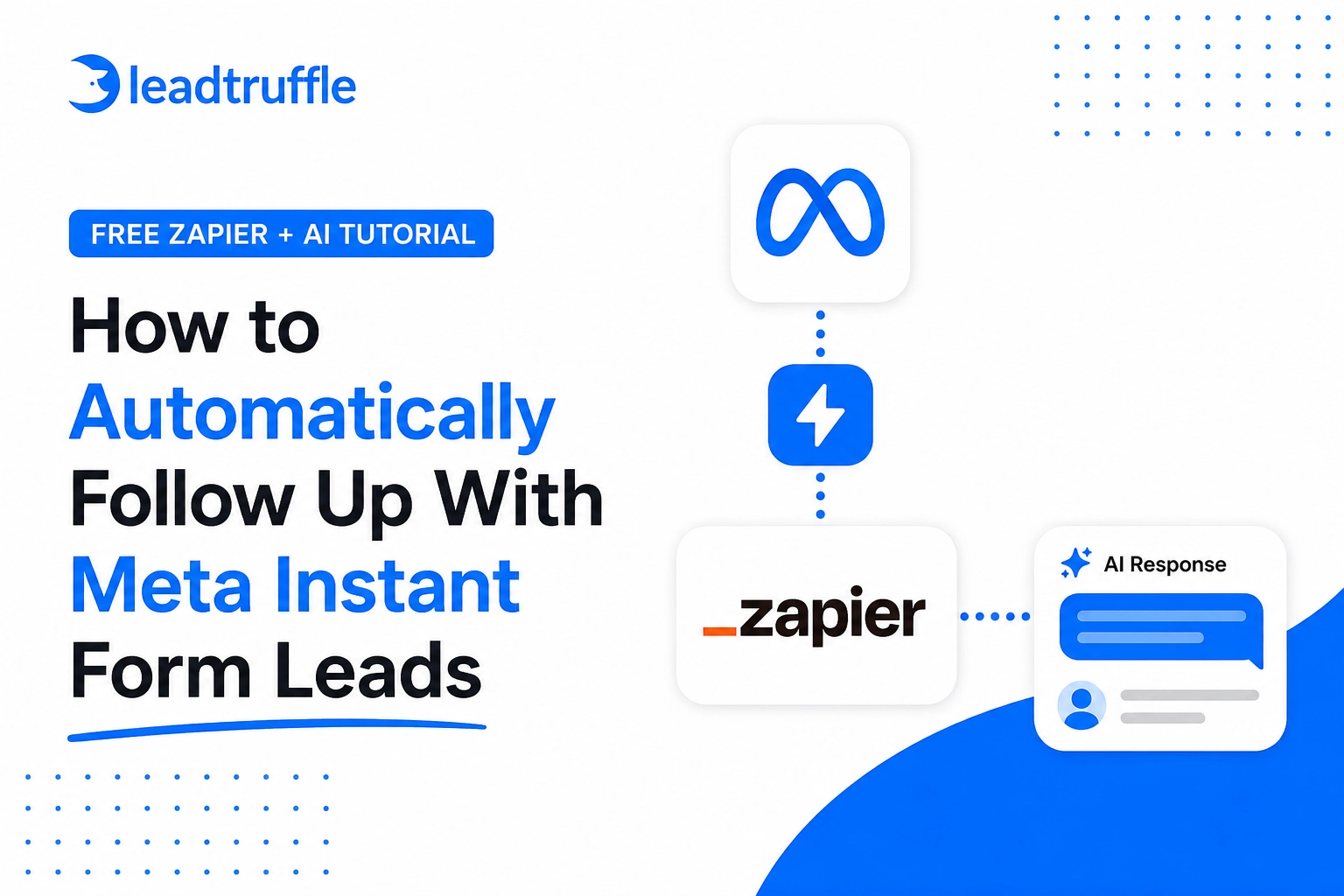
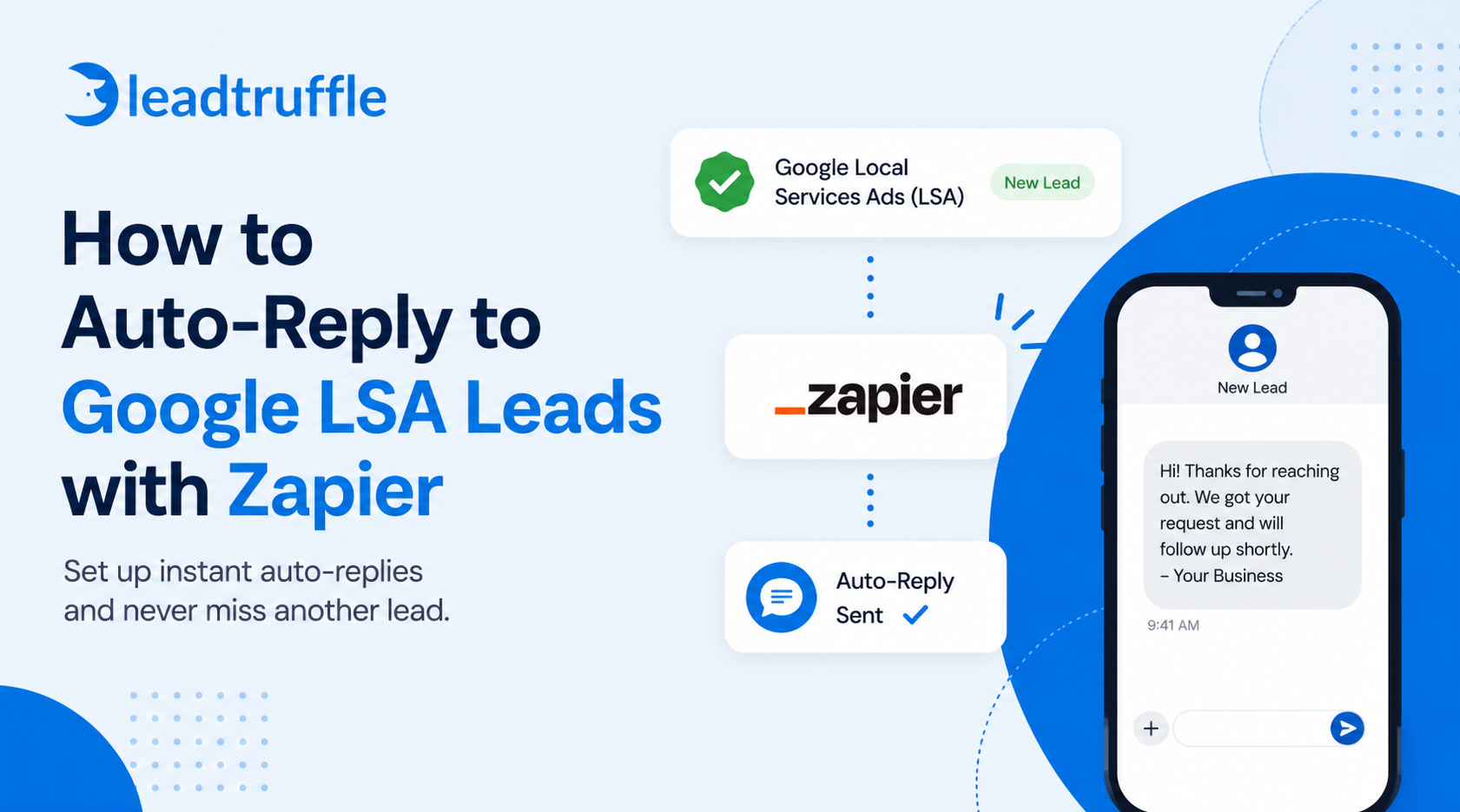
How to Auto-Reply to Google LSA Leads with Zapier
Learn how to auto-reply to Google LSA leads with Zapier, where the workflow works, where it breaks, and when a dedicated Google LSA responder is a better fit.
Quick Answer
tl;dr: You can use Zapier to build a basic Google LSA auto-reply workflow if your Local Services Ads message lead notifications arrive by email and can trigger a Zap. This usually means parsing the notification email, sending a first reply or internal alert, and optionally creating a CRM record.
Zapier is not a full LSA responder, though. It usually cannot manage the full conversation, qualify the lead, follow up automatically, preserve source attribution, or handle CRM sync as cleanly as a dedicated Google LSA responder.
Watch the full video walkthrough below before going through the step-by-step instructions.
Why Google LSA Response Time Matters
Google LSA leads are high-intent. When someone sends a message through a Local Services Ad, they are actively looking for help and often reach out to more than one contractor at the same time.
Google says responsiveness can affect Local Services Ads performance and ranking. That means consistently missing or delaying replies can hurt your visibility over time.
The first business to respond and start a real conversation has a significant advantage. Studies consistently show that speed to lead is one of the strongest predictors of whether a lead converts.
Auto-replying does not replace your team. It protects the first touch when your team is busy, on a job, driving, or unavailable after hours. Done well, it keeps the conversation alive until a real person can step in.
What Is an LSA Responder?
An LSA responder is software that automatically responds to Google Local Services Ads leads. A basic LSA responder may only send a first reply. A more complete Google LSA responder app can respond in seconds, qualify the lead, follow up when the customer goes quiet, sync the lead to your CRM, and keep every conversation in one inbox.
Zapier can act like a basic LSA responder in some setups, but it is a general automation tool, not software built specifically for Google LSA lead response.
Understanding Google Local Services Ads Leads
Before setting up any automation, it helps to understand how Google Local Services Ads leads work because not all lead types are handled the same way.
In many LSA accounts, leads can arrive as calls, messages, or booking requests, depending on the category, market, and settings enabled. A Zapier-based auto-reply workflow is usually most relevant for message leads because those often trigger email notifications that can be parsed or routed.
- Phone number: Google shows a masked number. The homeowner calls, and the business pays for the lead. These need a live person or AI voice agent to handle.
- Book Now: In accounts where this is enabled, a homeowner may book directly into a scheduling system. The experience varies depending on the LSA category and configuration.
- Get a Quote messaging: The homeowner sends a message. Google notifies the business and delivers the reply back to the customer through the configured path.
If your business also needs to handle phone leads, missed calls, booking requests, and message follow-up in one workflow, Zapier usually becomes harder to manage.
Basic Zapier Workflow for Google LSA Auto-Replies
The core of a Zapier-based Google LSA auto-reply is straightforward:
- Google sends an LSA notification email when a new message lead arrives.
- Zapier detects that email.
- Zapier extracts basic lead details from the notification.
- Zapier sends a reply, creates a CRM record, or notifies the team.
The exact setup depends on the tools your business uses and how your LSA notification emails are configured.
Step-by-Step: How to Set Up a Basic Google LSA Auto-Reply with Zapier
This is the core tutorial. The exact setup will vary depending on what tools your business uses, but the overall logic is consistent.
Important: Zapier does not currently work like a native Google LSA responder. In most setups, Zapier is reacting to notification emails, not directly managing the Google LSA conversation thread. Test carefully and confirm the response is reaching the customer in the correct channel before relying on this workflow.
Step 1: Confirm Where Your LSA Lead Notifications Are Going
Log in to your Google LSA dashboard at ads.google.com/localservices. Go to Profile and Budget, then scroll to Settings and find Text Message Settings. Note the phone number or email receiving notifications.
If you want Zapier to trigger on these notifications, you need them delivered to a channel Zapier can detect. Email is the most common approach.
Step 2: Set Up a Dedicated Inbox or Forwarding Rule
Create a separate email address specifically for LSA notifications, or set up a forwarding rule that routes them there. This keeps the Zapier workflow clean and prevents it from firing on unrelated emails.
Step 3: Choose Your Zapier Trigger
In Zapier, create a new Zap and choose an email-based trigger. Common options include:
- New email received in Gmail, Outlook, or another email app
- New labeled email in Gmail
- New email matching a specific search
- Email parser trigger that extracts specific fields from a structured email
The email parser trigger is often the most useful here because it lets you pull out the customer’s name, service category, and message.
Step 4: Parse the Lead Details
LSA notification emails include the customer’s name, the service they selected, the message they sent, and sometimes contact information. Your Zap needs to extract these fields before using them in a reply or CRM record.
Zapier has a built-in email parser, or you can use a third-party service like Mailparser.io. Test this step carefully because even small formatting changes in the Google notification email can break the parsing logic.
Step 5: Choose Your Action
Common actions include:
- Sending an email reply through Gmail or Outlook
- Sending an SMS through Twilio or another texting tool
- Creating a new CRM record
- Sending an internal Slack or email alert
- Adding the lead to a Google Sheet
One important note: do not assume that sending a normal SMS or email outside Google counts the same as responding inside the LSA message thread. The safest workflow depends on how the original lead was received and how Google routes the reply. Test this before relying on it.
Step 6: Write Your Auto-Reply Message
Keep it short. Acknowledge the customer, reference the service if you have it, and ask one specific qualifying question to move the conversation forward.
Here are three templates you can use as a starting point:
Hi [Name], thanks for reaching out to [Business Name]. We received your request for [service]. Can you share your address and a few details about what you need help with?
Hi [Name], we got your Google request and would be happy to help. What is the best address for the job, and is this urgent or something you are planning ahead for?
Hi [Name], thanks for contacting [Business Name]. To get you the right help, can you tell us what is going on and when you would like someone to come out?
Step 7: Test the Workflow
Before relying on this Zap, run a real test. Send a test lead through your LSA profile and confirm the reply sends correctly, the CRM record is created, and your team receives the right alert. Also confirm the reply reaches the customer through the Google messaging thread.
What a Good Google LSA Auto-Reply Should Include
A good auto-reply does more than acknowledge the message. It starts a real conversation.
The best first replies respond quickly, use the customer’s name when available, reference the service they requested, and ask one specific qualifying question. Something like their address, the scope of the job, or timing. That one question turns the auto-reply into an interaction instead of a dead end.
The goal is not just to say thanks. The goal is to get the customer to respond. If they respond, you have a lead in motion. If they do not, you have a customer who moved on.
Where Zapier Works Well for Google LSA Lead Management
Zapier may be enough if:
- You get a small number of LSA message leads per month.
- You only need an internal alert or first acknowledgment.
- Your team still manually follows up after the auto-reply.
- You are comfortable testing and maintaining automations.
- You do not need full conversation history or clean CRM attribution at this stage.
If you are just trying to get a notification into Slack or send a simple acknowledgment while your team responds manually, Zapier can handle that without much setup.
Where Zapier Falls Short as a Google LSA Responder
Zapier is a flexible tool, but it has real limitations when it comes to Google LSA lead management through the full lead cycle.
- Email parsing can break. If Google changes the format of its notification emails, your parser stops working and LSA response stops with it.
- Zapier may not capture all lead data reliably, especially if the email format varies by service type or device.
- It does not preserve the full conversation history unless you have built additional steps. That makes handoff to your team much harder.
- It does not qualify leads through a real back-and-forth conversation on its own. It sends one message. What happens next depends on whether the customer responds and whether a human is watching.
- It does not handle booking unless you have connected a scheduling app and built that into the workflow. That adds more steps and more failure points.
- It can create disconnected data across email, CRM, spreadsheets, and texting tools if each step writes to a different system.
None of this means Zapier is wrong for every setup. It means going in knowing what you are building.
Zapier vs. a Dedicated Google LSA Responder App
Here is a practical comparison to help you decide which approach fits your situation.
| Feature | Zapier workflow | Dedicated Google LSA responder |
|---|---|---|
| Best for | Basic alerts and simple replies | Full Google LSA lead response workflow |
| Setup method | Email trigger or parser | Email relay or direct API sync |
| First response | Possible, depending on setup | Built for instant LSA response |
| Lead qualification | Manual or custom-built | AI qualification built in |
| Follow-up | Requires extra Zaps | Automated follow-up |
| CRM sync | Possible but fragile | Native CRM sync |
| Conversation history | Usually incomplete | Preserved in one inbox |
| Booking | Requires separate workflow | Available when configured |
| Maintenance | Needs ongoing monitoring | Managed inside the platform |
A Google LSA responder app built specifically for this workflow handles LSA response time, qualification, follow-up, CRM sync, and source attribution in a way that Zapier requires significant additional build work to replicate.
How LeadTruffle Works as a Full Google LSA Responder
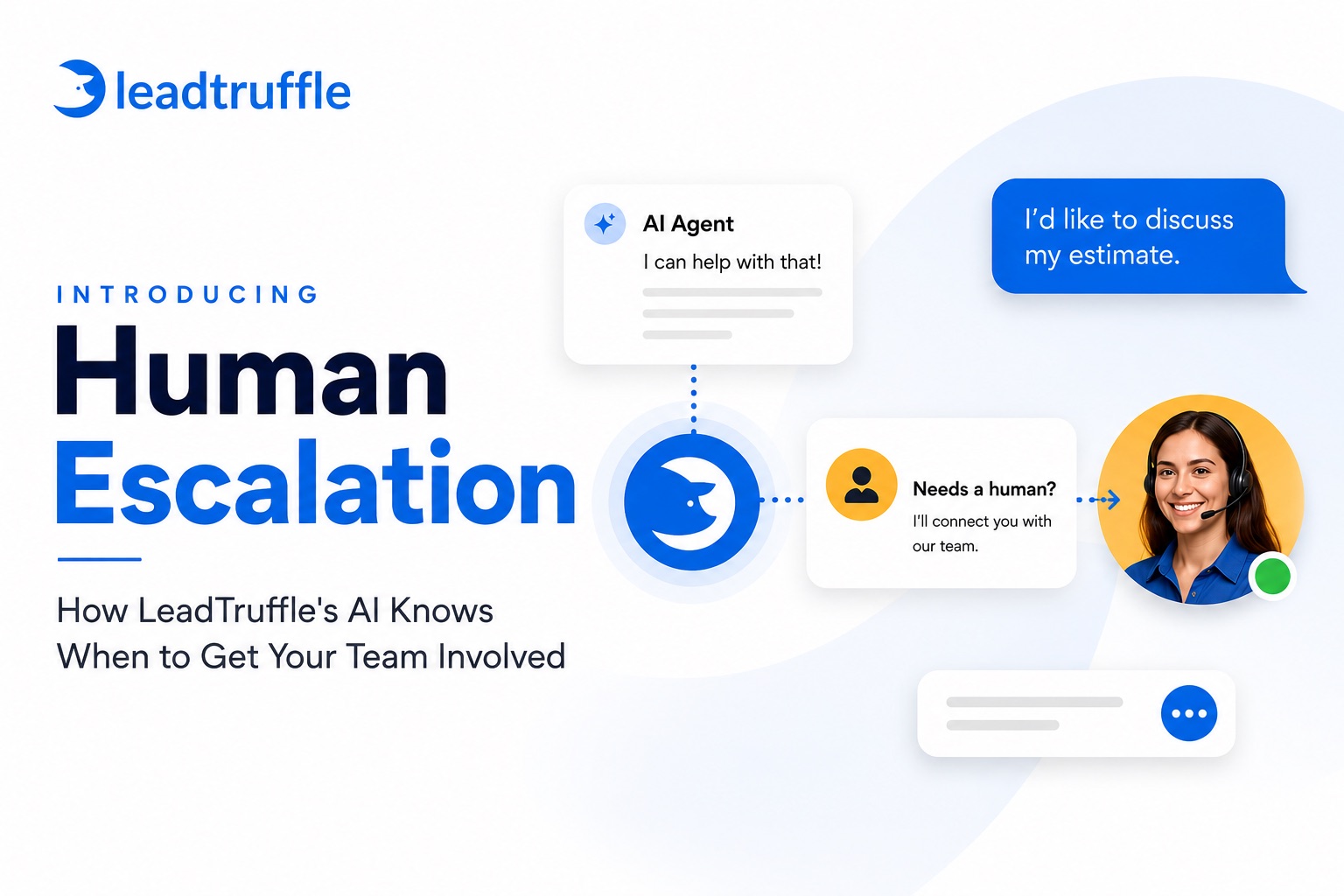
LeadTruffle is not just an LSA responder that sends one message and stops. It is the lead system behind the response. Google LSA leads can enter LeadTruffle through email forwarding or direct Google LSA integration, appear in the unified inbox with source attribution, and move through AI response, human takeover, automated follow-up, CRM sync, and booking when configured.
The difference between that and a basic Zapier workflow is depth. LeadTruffle manages the lead from first response through qualification and handoff, not just the first message.
Qualified leads can be pushed into Jobber, Housecall Pro, ServiceTitan, HubSpot, Workiz, and other tools with full conversation history and source attribution attached. Your team sees what the customer asked, what the AI collected, and what stage the lead is in.
LeadTruffle also brings all your lead sources into a single inbox. LSA, missed calls, website chat, Yelp, Thumbtack, Angi, and others all land in the same place. LeadTruffle helps protect your response workflow by making it easier to answer quickly and consistently across every channel.
See the full LeadTruffle integrations list to check which tools connect.
When to Use Zapier and When to Use LeadTruffle
Use Zapier if you only need a basic notification or first acknowledgment, your LSA message lead volume is low, someone on your team is already manually following up, or you are comfortable maintaining and troubleshooting the workflow yourself.
Use a dedicated Google LSA responder like LeadTruffle if you need every LSA lead answered quickly, including after hours; your team misses calls or messages during the day; you want AI to qualify leads and collect address, job type, and timing; you want follow-up handled automatically; you want LSA leads synced to your CRM with source attribution; or you want one inbox for LSA, missed calls, website chat, Yelp, Thumbtack, Angi, and other lead sources.
Common Mistakes to Avoid
A few things undermine even a well-built auto-reply setup:
- Sending a generic thanks message with no follow-up question. This ends the conversation before it starts.
- Only calling back instead of replying through a trackable channel. Phone calls leave no record and no thread.
- Letting Zapier create duplicate CRM records if a step fires more than once. Test for this before going live.
- Not testing the Zap after setup. A workflow that looks right in Zapier does not always behave the way you expect in the real world.
- Not monitoring failed Zap runs. If the workflow breaks, you may not notice for days.
- Not having a follow-up step. One auto-reply is better than nothing, but most Google Local Services Ads leads require more than one touch.
- Treating auto-reply as the entire sales process. The auto-reply buys time. Someone still needs to close the job.
Wrapping Up
Zapier is a useful starting point if you want a basic Google LSA auto-reply workflow. It can help you catch message leads faster, send a first acknowledgment, and alert your team. But for contractors who depend on Google Local Services Ads, the real opportunity is bigger than one auto-reply. You need every LSA lead answered, qualified, followed up with, tracked in your CRM, and connected to revenue. That is where a full LSA responder like LeadTruffle fits.
The Google Local Services Ads cost calculator is a good place to see what your current leads are actually costing you and whether faster response times change the math.
Want every Google LSA lead answered, qualified, and synced to your CRM automatically? Book a demo with LeadTruffle.
FAQ
Can Zapier connect to Google LSA?
Zapier does not have a direct native integration with Google LSA, but it can support basic workflows around LSA lead notifications through email triggers or parsing. The exact setup depends on how your notifications are received and what apps you are using.
Can I auto-reply to Google LSA leads?
Yes. You can use a Zapier-based workflow for simple replies, or a dedicated LSA responder for instant replies, AI qualification, follow-up, CRM sync, and booking workflows.
What is an LSA responder?
An LSA responder is software that automatically replies to Google Local Services Ads leads. A basic LSA responder sends one message. A full Google LSA responder app can also qualify leads, follow up automatically, sync to the CRM, and support team handoff.
What is the best Google LSA responder app?
The best Google LSA responder app depends on what you need. A basic tool may be enough if you only need an auto-response. A full workflow platform like LeadTruffle is better if you need AI qualification, follow-up, CRM sync, source attribution, booking, and a unified inbox for multiple lead sources.
Does Google LSA response time affect performance?
Google says responsiveness can affect Local Services Ads performance and ranking. Responding quickly and consistently helps protect your lead handling process and reduces the chance of losing paid leads to faster competitors.
Is Zapier enough for Google LSA lead management?
Zapier can be enough for simple notifications or basic auto-replies. It is usually not enough if you need full conversation history, AI qualification, automated follow-up, booking, or clean CRM attribution.
What should a Google LSA auto-reply say?
It should acknowledge the customer, reference the service request if possible, and ask one simple qualifying question such as their address, job details, or preferred timing.
What is the difference between Zapier and a Google LSA responder?
Zapier connects apps and can support basic automations around LSA email notifications. A Google LSA responder is built specifically to respond to LSA leads and may include AI qualification, follow-up, CRM sync, and team handoff built into the platform.
Can Zapier qualify Google LSA leads?
Zapier can route information and trigger steps, but it does not qualify leads through a real conversation unless connected to other tools. A dedicated LSA responder with AI can ask follow-up questions and collect details like job type, address, timing, and urgency.